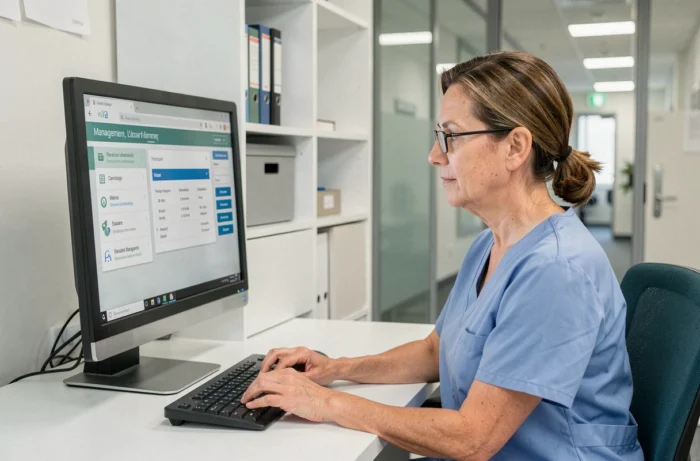
Netsoins is a computerized user file management software (DUI) used in nursing homes and other medico-social establishments. Access to the platform relies on credentials provided by the employer establishment, rather than on free registration. This particularity generates recurring questions about logging in, password recovery, and navigation within the personal space.
Netsoins login URL: check the exact address first
The first reflex when the login page does not display correctly is to check the URL in the address bar. Since 2024, several groups of nursing homes are migrating from the generic portal hsm.netsoins.com to dedicated URLs by establishment, such as nomdetablissement.netsoins.fr.
This migration creates a concrete trap. Bookmarked favorites in the browser still point to the old address, causing redirect loops, blank pages, or an outdated login form. The fix is simple: ask the establishment’s IT department for the exact current URL, then update the bookmark.
A detailed guide explains how to access Netsoins considering these recent address changes.
Another often overlooked point is the browser. Netsoins is a 100% web solution, with no local installation. However, some older or poorly configured browsers block session cookies or SSL certificates, preventing the portal from loading. Using a recent browser (Chrome, Firefox, Edge) with cleared cache resolves most blank screen issues.

Strong authentication on Netsoins: understanding the second factor
Since 2024-2025, the main cause of login failure is no longer forgotten passwords. It is the lost or never configured second authentication factor. Netsoins is gradually strengthening access security by imposing an additional verification after entering the password.
This second factor can take several forms:
- An authentication app installed on the work phone (such as Google Authenticator or equivalent), which generates a temporary one-time code.
- A text message sent to a phone number registered during the initial account setup.
- A physical FIDO2 key plugged in via USB, used in some establishments with high compliance requirements.
The problem arises when the phone is changed, lost, or reset without having backed up the recovery codes. Recovery then necessarily goes through the Netsoins administrator of the establishment, who can reset the second factor from their management interface.
Anticipating the loss of the second factor
Teranga, the publisher of Netsoins, recommends testing the recovery procedure before needing it. Specifically, this means noting the recovery codes provided during activation and ensuring that a local administrator is properly identified to intervene in case of a blockage.
This precaution prevents situations where a caregiver finds themselves locked out of the platform for several hours while technical support processes the request.
Professional and family spaces: two distinct accesses on Netsoins
Netsoins clearly separates professional modules and family modules. This distinction has direct consequences on the management of the personal space, as access rights, visible functionalities, and consultable data are not the same.
The professional space (caregivers, administrative staff) provides access to the complete DUI, care traceability, planning, and management tools. Credentials are created by the establishment, with varying permission levels depending on the job profile.
The family space, on the other hand, offers a restricted view: information about the resident, activity tracking, and possibly messaging with the care team. Credentials are also provided by the establishment, not through online registration.
Modifying personal information in your space
Management of the personal space is done from the account settings once logged in. Common actions include changing the password, updating the contact email address, and configuring the second authentication factor.
The password must comply with the compliance rules imposed by the establishment’s security policy. Generally, this involves a minimum length, a mix of characters, and periodic renewal. Failure to meet these criteria results in a silent rejection when attempting to modify, with no explicit error message in some cases.

Resolving the most common Netsoins access issues
Three situations regularly arise for blocked users. Identifying them can save time before seeking support.
- Blank page or certificate error: clear the browser cache, check that the URL is indeed the one provided by the establishment, and disable extensions that block scripts.
- Password rejected after reset: ensure that the new password meets all security policy constraints, including the prohibition against reusing an old password.
- Authentication code not received by SMS: check that the phone number associated with the account is still active, and that the phone has network reception at the time of the attempt.
If none of these checks resolve the situation, contacting the local Netsoins administrator remains the primary channel. Publisher support (Teranga, now part of Orisha Socialcare) intervenes at the second level, usually for server-side technical issues or global configuration anomalies.
The majority of blocks on Netsoins can be resolved by checking two elements: the exact login URL and the status of the second authentication factor. Keeping these two pieces of information up to date, with accessible recovery codes, is sufficient to avoid almost all access interruptions on a daily basis.